Dr. Bill Podcast – 142 – (06/28/08)
Click on the “Streaming MP3″ badge below to play Streaming Audio of this Podcast. Download MP3
(Right-Click on the Link Above and Choose “Save” to Save the MP3 file locally on your PC.)
Click on the “Streaming Ogg” badge below to play Streaming Ogg Vorbis Format Audio of the Podcast. Download Ogg Vorbis Format
(Right-Click on the Link Above and Choose “Save” to Save the Ogg Vorbis file locally on your PC.)
A very short podcast because we had a HUGE system crash that has kept me SO busy! But, Geek Culture of “The Ballad of the Gamer,” and Geek Software of the Week: Objectdock!
I let the actual date earlier this month slip by, but as of the 9th of this month (June,) I have been blogging here at www.DrBill.CC (also, www.TheComputerCurmudgeon.com) for three full years! Wow! It has been an amazing three years! I hope that you are enjoying our growth and expansion! We have exciting days ahead as well! Hang in there, and tell your friends to check out our podcast, IPTV show, and blog!
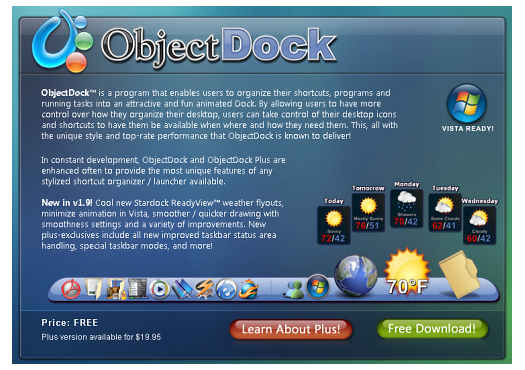
Objectdock allows you to have an active, graphical dock like a Mac, on your PC! Check it out! There is a free version and a paid version… download it, try it… you will be impressed! Drag and drop your desktop icons to the dock, and watch them appear!
“ObjectDockâ„¢ is a program that enables users to organize their shortcuts, programs and running tasks into an attractive and fun animated Dock. By allowing users to have more control over how they organize their desktop, users can take control of their desktop icons and shortcuts to have them be available when where and how they need them. This, all with the unique style and top-rate performance that ObjectDock is known to deliver! In constant development, ObjectDock and ObjectDock Plus are enhanced often to provide the most unique features of any stylized shortcut organizer / launcher available. New in v1.9! Cool new Stardock ReadyViewâ„¢ weather flyouts, minimize animation in Vista, smoother / quicker drawing with smoothness settings and a variety of improvements. New plus-exclusives include all new improved taskbar status area handling, special taskbar modes, and more!”
Dr. Bill Podcast – 141 – (06/21/08)
Click on the “Streaming MP3″ badge below to play Streaming Audio of this Podcast. Download MP3
(Right-Click on the Link Above and Choose “Save” to Save the MP3 file locally on your PC.)
Click on the “Streaming Ogg” badge below to play Streaming Ogg Vorbis Format Audio of the Podcast. Download Ogg Vorbis Format
(Right-Click on the Link Above and Choose “Save” to Save the Ogg Vorbis file locally on your PC.)
A totally strange. odd, and “what else could go wrong” podcast! Sigh! Tech news: Firefox at 8 million downloads, podcasting tech toy, Geek Software of the Week: PuTTY, a man gets a printer working with Vista, and Vista Blues!
Recorded with the new laptop’s 2 megapixel webcam… the audio’s a little weak, but I will work on that… but the netcast was fun to do, and features “Big Buck Bunny” an Open Source video made with Blender Open Source animation software on Linux! How geeky is that? Check it out, either from the Dr. Bill.TV site at this link:
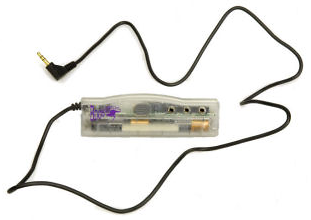
As you know, I am always trying to improve the podcast quality, and my recent experiences with my new laptop, and trying to get the audio recording to work, created the need to boost my volume in my headphones. A side benefit to this particular “fix” is that it also provides the ability to have THREE headphones driven by the system. That means that if the Gamemaster and Vlad join me to do a Gamemaster’s Benspin podcast (as they will this weekend,) we can all enjoy hearing the recording as it happens! Definitely helps in the production! So, here’s another consideration if YOU need that headphone sound boost! It is called “Boostaroo” (cute.) I got mine at Radio Shack, but it is also available on-line, here:
I can’t believe I haven’t already mentioned this one. If you are a Linux/Unix geek and need the command line, you will have probably used PuTTY. It is a great, free telnet/SSH client for Windows. Check it out!
“PuTTY is a free implementation of Telnet and SSH for Win32 and Unix platforms, along with an xterm terminal emulator. It is written and maintained primarily by Simon Tatham. PuTTY is a client program for the SSH, Telnet and Rlogin network protocols. These protocols are all used to run a remote session on a computer, over a network. PuTTY implements the client end of that session: the end at which the session is displayed, rather than the end at which it runs. In really simple terms: you run PuTTY on a Windows machine, and tell it to connect to (for example) a Unix machine. PuTTY opens a window. Then, anything you type into that window is sent straight to the Unix machine, and everything the Unix machine sends back is displayed in the window. So you can work on the Unix machine as if you were sitting at its console, while actually sitting somewhere else.”
(I might mention… PuTTY is a small, tight single file executable program, you don;t really “install” it. You just put the executable file in a directory, like: “C:\Program Files\PuTTY” and create a shortcut to “putty.exe.” That’s it! Back to the days when programs were programs and men were men!)
I’m not kidding… that is the headline in a story in a Seattle newspaper! I kid you not! Vista is, indeed, the lamest OS ever… and I have used Windows Me!
“Regular readers may recall the story of Charles Walling, the retired Seattle warehouseman whose struggle to get his printer to work with Windows Vista was documented in our story marking the Microsoft operating system’s first year on the market. Charles Walling prints from his Windows Vista PC. Well, it’s working now — but not without some help from a Windows test manager. The underlying problem reflects the huge changes Microsoft made from Windows XP to Windows Vista, and the need for hardware makers to adjust. At the same time, the experience may provide a good reminder for PC users making an upgrade. Here’s the back story: After the article ran, I received e-mails from a couple of people inside Microsoft who were curious about the cause of the problem. With Mr. Walling’s permission, I directed them to him. Tom White, test manager for documents and printing in Microsoft’s Windows Experience group, visited the Walling household on multiple occasions, figured out what was wrong, and ultimately got the printer to work. Here’s what White figured out: When Mr. Walling bought his new Windows Vista machine, he initially used the installation disc that came with his Dell 942 All in One printer that he had been using with his previous PC. That disc was meant for Windows XP. The problem: Dell’s printer driver for Windows XP did install on Windows Vista. But it didn’t work. And it couldn’t be easily removed.”
Click on the screen above to view our LATEST Dr. Bill.TV Video Netcast! Can't see the video? Want to see ALL our past Dr. Bill.TV episodes? For a list of our Dr. Bill.TV netcasts, click HERE!
Since Internet Explorer 10 does not properly support HTML5 and Cloud Computing sourced video, be sure to go to our individual video posts and click on the "Streaming M4V" icon to view our Dr. Bill.TV show (or switch to a real browser!)
Subscribe
via RSS
Subscribe
via iTunes
Subscribe
via Vimeo
Subscribe
via TPN
Subscribe
via Blubrry
Subscribe
via YouTube
Reaching the Whole World with Silliness!
The small red dots are past visitors, the active flagged dots are current visitors!